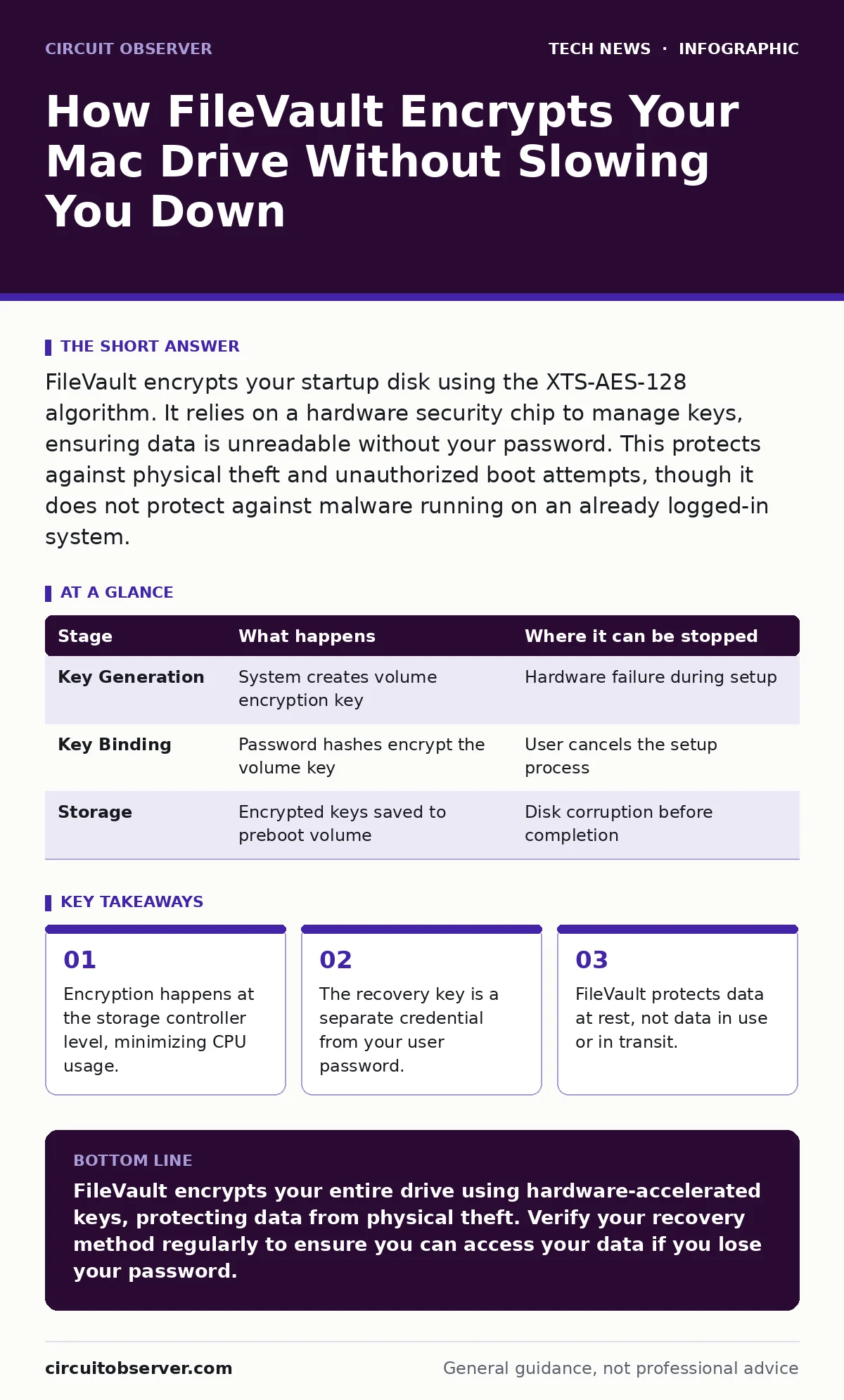
FileVault encrypts your startup disk using the XTS-AES-128 algorithm. It relies on a hardware security chip to manage keys, ensuring data is unreadable without your password. This protects against physical theft and unauthorized boot attempts, though it does not protect against malware running on an already logged-in system.
The Architecture of Full Disk Encryption
Full disk encryption transforms readable data into ciphertext before it hits the physical platter or NAND flash. FileVault implements this using the XTS-AES-128 algorithm, a standard designed specifically for disk encryption. It splits your data into sectors and encrypts them independently. This prevents an attacker from moving blocks around to manipulate your file system structure.
The encryption key never touches the operating system memory in plain text. Instead, it resides within a secure enclave, a dedicated coprocessor isolated from the main CPU. This separation ensures that even if the main processor is compromised, the keys remain inaccessible. You do not manually manage these keys. The system handles the cryptographic operations transparently. This design balances security with the performance demands of modern computing.
Stage 1: Initial Key Generation and Storage
Stage 1: Initial Key Generation and Storage
When you first enable FileVault, the system generates a unique encryption key for your volume. This key is called the volume encryption key. It is used to encrypt and decrypt all data on the drive. The system then encrypts this volume key using your user password. This creates a derived key that binds your identity to the data. The encrypted volume key is stored in a dedicated preboot partition on the drive.
This partition exists before the main operating system loads. It contains the code necessary to verify your credentials. Without this partition, the system cannot begin the decryption process. The hardware security module generates a unique identifier for your machine. This identifier helps bind the encryption to the specific physical hardware. This binding prevents someone from simply moving the drive to another Mac and reading it.
| Stage | What happens | Where it can be stopped |
|---|---|---|
| Key Generation | System creates volume encryption key | Hardware failure during setup |
| Key Binding | Password hashes encrypt the volume key | User cancels the setup process |
| Storage | Encrypted keys saved to preboot volume | Disk corruption before completion |
Stage 2: The Preboot Environment
Stage 2: The Preboot Environment
Before the main macOS interface appears, the preboot environment takes control. This environment is minimal and focused solely on authentication. It loads from the encrypted preboot volume. When you type your password, the system does not send it to a remote server. It processes it locally within the secure enclave. The enclave derives a key from your password and compares it to the stored hash. If they match, the secure enclave releases the volume encryption key.
This key is then passed to the storage controller. The controller begins decrypting data on the fly as it is read. This process happens so quickly that you notice no delay. If the password is wrong, the key is never released. The system simply prompts you again. This isolation prevents keyloggers in the main OS from capturing the decryption key. It also protects against cold boot attacks, where attackers try to read memory after power loss.
Stage 3: Runtime Decryption and Caching
Stage 3: Runtime Decryption and Caching
Once logged in, the system maintains a session key in memory. This session key allows rapid access to files without re-authenticating every read operation. The storage controller handles the actual decryption of data blocks. It decrypts data as it moves from the drive to the RAM. When you write new data, the controller encrypts it before saving it to the drive. This happens at the block level, not the file level. You can copy, move, and delete files normally.
The encryption layer is invisible to applications. This transparency is why performance remains high. The CPU does not need to perform heavy cryptographic calculations. The dedicated hardware silicon handles the workload. This offloading is critical for maintaining system responsiveness. If the system goes to sleep, the session key may be removed from memory. Upon waking, you may need to re-enter your password to restore the session. This re-locking feature adds an extra layer of protection.
Stage 4: Handling Hardware Changes and Restarts
Stage 4: Handling Hardware Changes and Restarts
Restarting the computer forces a full re-authentication. The secure enclave requires a fresh verification of credentials. This ensures that no unauthorized changes occurred while the machine was off. If you replace the internal drive, the old encryption keys are lost. You must set up FileVault again on the new drive. Migrating data requires decrypting the old drive and encrypting the new one.
This process can take a significant amount of time. External drives can also be encrypted with FileVault. However, they require your user password to unlock. This means you must carry your credentials with you. Losing the external drive without the password results in data loss. The system does not store a copy of the encryption key on Apple servers. This is a privacy feature, not a bug. It places the burden of key management on you.
See also: Employee Data Breach Prevention Checklist for Internal Threats · Encoding vs Encryption: How to Choose the Right Data Protection Method
The Limits of Full Disk Encryption
The Limits of Full Disk Encryption
FileVault protects data at rest. It does not protect data in use. Once you are logged in, an application can read your files. A keylogger can capture your password. A remote access tool can view your screen. Encryption cannot stop malware that has already gained execution privileges. It also does not protect against social engineering. If you are tricked into unlocking your drive, the encryption is bypassed.
Physical tampering with the secure enclave is possible but difficult. It requires specialized equipment and expertise. The threat model assumes a determined adversary with physical access. It does not assume a nation-state actor with unlimited resources. For most users, this level of protection is sufficient. It stops casual theft and opportunistic attacks. It also ensures compliance with many data protection standards.
Integrating With Broader Security Practices
Integrating With Broader Security Practices
FileVault works best when combined with other security measures. You should enable macOS security settings to restrict unauthorized access to system files. This reduces the attack surface for malware. Consider USB security policies to prevent data exfiltration via external drives. Even with encryption, a stolen drive can be used to install malicious firmware. Regular updates ensure that the encryption implementation remains secure.
New vulnerabilities in the secure enclave code are patched over time. You should also review remote work security practices if you access sensitive data. Encryption protects the device, but not the network traffic. Using a secure connection prevents interception of data in transit. For organizations, data center security protocols may require additional logging and monitoring. FileVault provides the foundation, but not the entire structure.
Managing Recovery and Key Loss
Managing Recovery and Key Loss
The recovery key is a 28-character string. It serves as a fallback if you forget your password. You can store it in your iCloud account or print it out. Storing it in iCloud requires two-factor authentication to retrieve. This adds a layer of security to the recovery process. Printing it out means you must keep it in a safe physical location. If you lose both, the data is gone.
There is no way to reset the encryption key. You must wipe the drive and start over. This is a deliberate design choice. It ensures that no entity, including the manufacturer, can access your data. You should test the recovery process periodically. Create a dummy file, encrypt the drive, and try to recover it. This verifies that your backup method works. It also familiarizes you with the steps required in an emergency.
Key takeaways
- Encryption happens at the storage controller level, minimizing CPU usage.
- The recovery key is a separate credential from your user password.
- FileVault protects data at rest, not data in use or in transit.
FileVault encrypts your entire drive using hardware-accelerated keys, protecting data from physical theft. Verify your recovery method regularly to ensure you can access your data if you lose your password.
Frequently asked questions
Does FileVault slow down my Mac?
No, the encryption and decryption happen in the hardware storage controller, so the main CPU is not significantly impacted. You will not notice a performance difference in daily tasks.
Can I decrypt the drive remotely?
No, FileVault requires local authentication. There is no remote command to decrypt the drive because the keys never leave the secure enclave without user interaction.
What happens if I reset my password?
Resetting your user password does not reset the encryption key. The new password will encrypt the existing volume key. Your data remains accessible with the new password.
Is FileVault compatible with external drives?
Yes, you can encrypt external drives with FileVault. They will require your password to unlock, just like the internal drive.
How this guide was produced: written by the Circuit Observer editorial team with AI assistance, checked against the public references listed below, and reviewed when the facts change. See our editorial policy or report an error.