
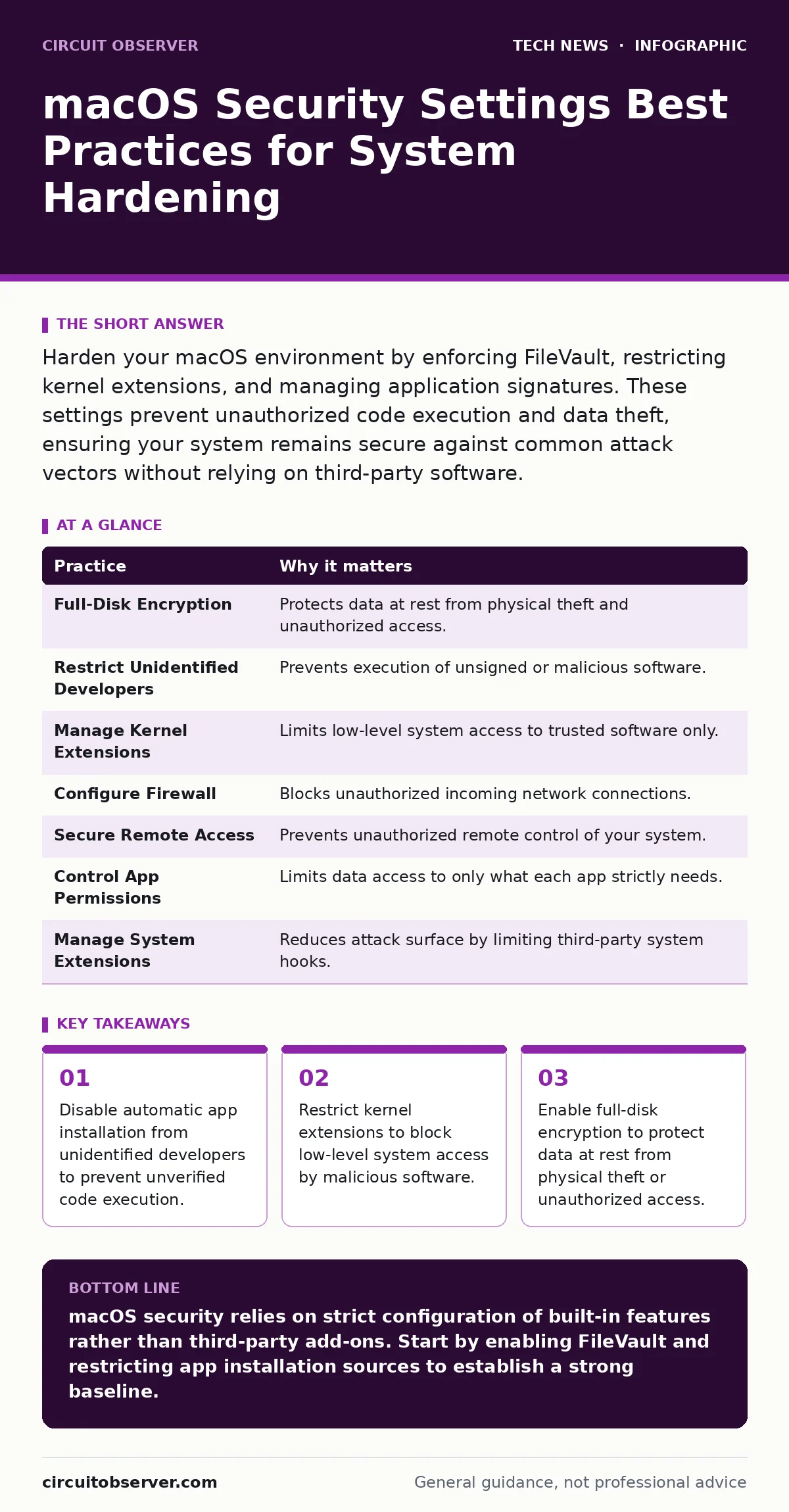
Harden your macOS environment by enforcing FileVault, restricting kernel extensions, and managing application signatures. These settings prevent unauthorized code execution and data theft, ensuring your system remains secure against common attack vectors without relying on third-party software.
Enforcing Full-Disk Encryption
Physical access to a MacBook presents a severe threat regardless of your network security posture. Without encryption, an attacker with physical possession can bypass the login screen by booting into recovery mode or removing the drive. FileVault provides full-disk encryption, scrambling your data so it is unreadable without the correct key. This protection operates at the hardware level, utilizing the Secure Enclave to manage cryptographic keys securely. You must ensure this feature is active on every device before it leaves your control.
Restricting Unidentified Developers
macOS allows you to control which applications can run on your system through Gatekeeper. By default, it permits apps from the App Store and identified developers. However, attackers often sign malicious software with compromised or stolen certificates to bypass these checks. Changing the setting to "App Store only" significantly reduces the attack surface for casual users. For power users, you can allow apps from identified developers but require explicit permission for each new app. This adds a layer of friction that stops automated malware from executing silently.
Managing Kernel Extensions
Kernel extensions, or kexts, allow third-party software to run with the same privileges as the operating system kernel. This level of access is dangerous because a compromised extension can disable security features or steal data from other processes. Apple has largely replaced kexts with system extensions, which operate in user space and have limited privileges. You should audit your system for any remaining kernel extensions and disable them if they are not strictly necessary. This reduces the risk of low-level system compromise.
Configuring Firewall Rules
The built-in firewall in macOS blocks incoming connections by default for most applications. However, it does not block outgoing connections, allowing malware to communicate with command-and-control servers. You can configure the firewall to block all incoming connections and require an incoming connection for selected applications. This ensures that only services you explicitly trust can accept network traffic. Regularly review the list of allowed applications to remove any that are no longer needed.
Securing Remote Access
Remote management tools provide powerful administrative capabilities but also create significant security risks if misconfigured. Screen Sharing and Remote Management allow other users to control your Mac over the network. You should disable these features unless you have a specific, documented need for them. If you must use remote access, restrict it to specific user accounts and ensure they use strong authentication methods. Refer to our guide on remote work security for additional best practices on securing remote connections.
See also: What Is Device Hardening: Reduce Attack Surface and Stop Breaches · Detect Eavesdropping: Log Signals and Network Anomalies
Controlling Application Permissions
macOS uses a permissions model to restrict what apps can access, such as your camera, microphone, and files. Malicious apps often request these permissions to spy on users or exfiltrate data. You should regularly review the Privacy & Security settings to see which apps have access to sensitive resources. Revoke permissions for any app that does not need them to function. For example, a simple text editor should not require access to your camera or microphone. This principle of least privilege limits the damage an attacker can do if they compromise an application.
Managing System Extensions
System extensions are the modern replacement for kernel extensions, offering a more secure way for third-party apps to interact with the system. They include network extensions, window server extensions, and disk encryption extensions. Each type of extension has specific permissions and limitations. You should only install system extensions from trusted sources and regularly review the list of active extensions. Disabling unnecessary extensions reduces the complexity of your system and lowers the risk of security vulnerabilities.
Auditing Login Items
Login items are applications that launch automatically when you log in to your Mac. Attackers often use login items to persist on a system after a reboot. You should regularly check the Login Items section in System Settings to ensure only necessary applications are present. Remove any items you do not recognize or no longer need. This prevents unauthorized software from running in the background and consuming system resources.
| Practice | Why it matters |
|---|---|
| Full-Disk Encryption | Protects data at rest from physical theft and unauthorized access. |
| Restrict Unidentified Developers | Prevents execution of unsigned or malicious software. |
| Manage Kernel Extensions | Limits low-level system access to trusted software only. |
| Configure Firewall | Blocks unauthorized incoming network connections. |
| Secure Remote Access | Prevents unauthorized remote control of your system. |
| Control App Permissions | Limits data access to only what each app strictly needs. |
| Manage System Extensions | Reduces attack surface by limiting third-party system hooks. |
| Audit Login Items | Prevents persistence mechanisms used by malware. |
Integrating with Broader Security Strategies
Hardening your macOS settings is only one part of a comprehensive security strategy. You must also consider how your Mac interacts with other systems and services. For instance, if you use your Mac to access web services, understanding website security principles can help you avoid phishing attacks. Similarly, if your organization uses single sign-on, familiarizing yourself with SAML protocols can help you understand how authentication tokens are managed. These external factors influence the overall security posture of your device.
Key takeaways
- Disable automatic app installation from unidentified developers to prevent unverified code execution.
- Restrict kernel extensions to block low-level system access by malicious software.
- Enable full-disk encryption to protect data at rest from physical theft or unauthorized access.
macOS security relies on strict configuration of built-in features rather than third-party add-ons. Start by enabling FileVault and restricting app installation sources to establish a strong baseline.
Frequently asked questions
Do I need third-party antivirus for macOS?
Built-in security features like Gatekeeper and XProtect provide significant protection. Third-party antivirus may be necessary for specific compliance requirements or if you run high-risk software.
How often should I review my security settings?
Review your settings at least quarterly or after any major system update. Regular audits help identify new vulnerabilities or misconfigurations.
Can FileVault be bypassed?
FileVault is highly secure, but it can be bypassed if an attacker has physical access and the device is not properly locked. Always lock your screen when stepping away.
What is the difference between kernel extensions and system extensions?
Kernel extensions run in kernel space with full system privileges, while system extensions run in user space with limited privileges, offering a more secure model.
How this guide was produced: written by the Circuit Observer editorial team with AI assistance, checked against the public references listed below, and reviewed when the facts change. See our editorial policy or report an error.