
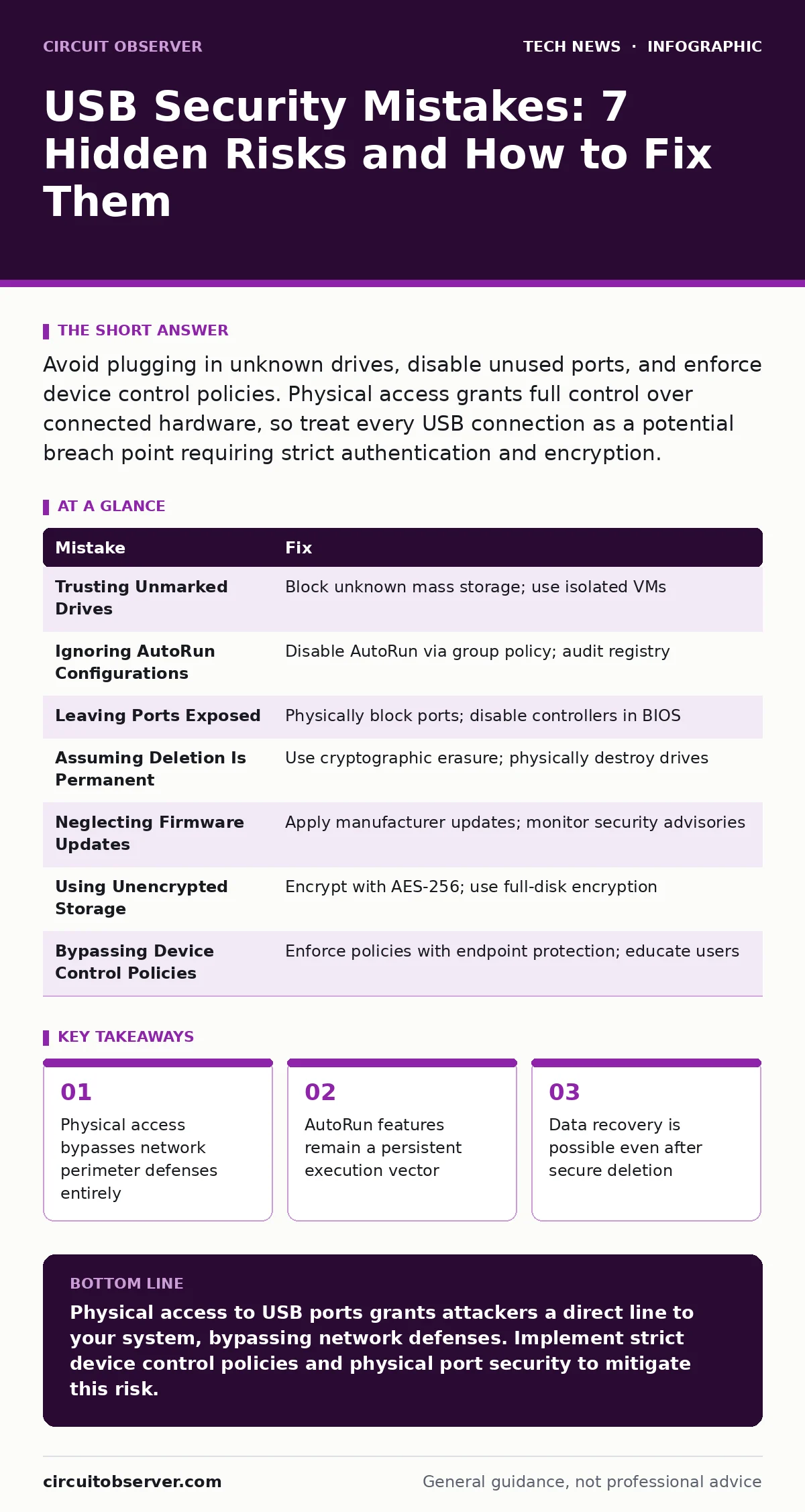
Avoid plugging in unknown drives, disable unused ports, and enforce device control policies. Physical access grants full control over connected hardware, so treat every USB connection as a potential breach point requiring strict authentication and encryption.
Mistake 1: Trusting Unmarked Drives
You often find a USB drive in a parking lot or a conference room. The curiosity to check its contents is natural, but the risk is immediate. These devices are frequently engineered to mimic keyboards rather than storage media.
Why it hurts:
This technique, known as a BadUSB attack, exploits the trust operating systems place in Human Interface Devices. When plugged in, the drive sends keystrokes that open command prompts and download malware. Your firewall sees this as local user activity, so it allows the traffic. The malware installs silently before you realize the drive is not just storage.
The fix:
Never plug in a drive you did not personally purchase or verify. Configure your system to block unknown mass storage devices entirely. If you must inspect a drive, do so in an isolated virtual machine with no network access. This containment ensures that any malicious code remains trapped within the disposable environment.
Mistake 2: Ignoring AutoRun Configurations
Many users assume that modern operating systems have eliminated the AutoRun feature. While automatic execution of files is less common, the registry keys and system hooks that facilitate this behavior still exist. Attackers exploit these legacy pathways to trigger scripts upon connection.
Why it hurts:
If your system is configured to allow AutoRun for certain device classes, inserting a compromised drive can execute code without your explicit consent. This bypasses the need for social engineering tricks. The attack happens in milliseconds, often before you can eject the device. You lose control of the session before you see any prompt.
The fix:
Disable AutoRun for all removable media through your group policy settings. Ensure that the policy applies to both local and roaming profiles. Regularly audit your registry to remove any unauthorized AutoRun entries. This hardening step removes the automatic execution trigger, forcing manual interaction for any file access.
Mistake 3: Leaving Ports Exposed
Physical ports on desktops and laptops are often accessible to anyone who can reach the machine. In shared offices or public spaces, this creates a direct line for hardware-based attacks. An attacker can plug in a malicious device that mimics a network adapter or a debugger.
Why it hurts:
An exposed USB port allows an attacker to inject network traffic directly into your system. This bypasses Wi-Fi security and perimeter firewalls. The malicious device can act as a trusted network interface, allowing data exfiltration or remote access installation. You remain unaware because the connection appears legitimate to the operating system.
The fix:
Physically block unused USB ports with port locks or epoxy. Configure your BIOS or UEFI settings to disable unused USB controllers. This hardware-level disablement prevents the operating system from recognizing any device plugged into those ports. It adds a layer of defense that software alone cannot provide.
Mistake 4: Assuming Deletion Is Permanent
Deleting files from a USB drive does not erase the data. It only removes the reference to the data in the file system table. The actual bits remain on the flash memory until they are overwritten by new data. This makes data recovery trivial for anyone with basic tools.
Why it hurts:
If you discard a USB drive after deleting sensitive files, an attacker can recover that data easily. This is particularly dangerous for drives containing credentials or proprietary information. The data persists long after you believe it is gone. You expose yourself to identity theft or corporate espionage without any visible sign of compromise.
The fix:
Use cryptographic erasure tools that overwrite the drive with random data multiple times. For high-security needs, physically destroy the drive using a shredder or degausser. Do not rely on the operating system’s delete function for sensitive media. This ensures that the magnetic or electrical state of the memory cells is randomized, making recovery impossible.
Mistake 5: Neglecting Firmware Updates
USB controllers and drives contain firmware that dictates how they interact with the host system. This firmware is rarely updated by users because it is hidden deep in the system architecture. Outdated firmware may contain known vulnerabilities that allow privilege escalation.
Why it hurts:
Vulnerable firmware can be exploited to bypass operating system security controls. An attacker can flash malicious firmware onto a legitimate drive, turning it into a persistent threat. Even if you format the drive, the malicious firmware remains. It can re-infect the drive or compromise any system it connects to.
The fix:
Regularly check for firmware updates from the manufacturer of your USB devices. Apply these updates in a controlled environment to avoid bricking the device. Monitor security advisories for known firmware vulnerabilities. This maintenance ensures that your hardware layer is as secure as your software layer.
See also: BitLocker Encryption: Real Benefits and Hidden Limitations · How FileVault Encrypts Your Mac Drive Without Slowing You Down
Mistake 6: Using Unencrypted Storage
Storing sensitive data on a USB drive without encryption is a common oversight. If the drive is lost or stolen, the data is immediately accessible to anyone who plugs it in. Encryption adds a layer of protection that requires a key for access.
Why it hurts:
Without encryption, physical possession of the drive equals full access to the data. There is no barrier between the attacker and your files. This violates data protection principles and can lead to severe regulatory consequences. The loss of confidentiality is immediate and total.
The fix:
Encrypt all sensitive data on USB drives using strong algorithms like AES-256. Use full-disk encryption solutions that integrate with the operating system. Ensure that the encryption keys are stored securely and not on the same device. This ensures that even if the drive is stolen, the data remains unreadable without the key.
Mistake 7: Bypassing Device Control Policies
Many organizations have device control policies in place to manage USB usage. Users often bypass these controls to improve productivity or convenience. This undermines the security posture of the entire network.
Why it hurts:
Bypassing device control policies allows unauthorized devices to connect to the network. This can introduce malware, data theft tools, or other malicious hardware. The policy is designed to enforce a baseline of security, and bypassing it creates a gap. Attackers exploit these gaps to gain initial access.
The fix:
Enforce device control policies strictly using endpoint protection platforms. Educate users on the importance of these policies and the risks of non-compliance. Provide approved alternatives for legitimate needs, such as secure file transfer portals. This balances security with usability, reducing the temptation to bypass controls.
| Mistake | Fix |
|---|---|
| Trusting Unmarked Drives | Block unknown mass storage; use isolated VMs |
| Ignoring AutoRun Configurations | Disable AutoRun via group policy; audit registry |
| Leaving Ports Exposed | Physically block ports; disable controllers in BIOS |
| Assuming Deletion Is Permanent | Use cryptographic erasure; physically destroy drives |
| Neglecting Firmware Updates | Apply manufacturer updates; monitor security advisories |
| Using Unencrypted Storage | Encrypt with AES-256; use full-disk encryption |
| Bypassing Device Control Policies | Enforce policies with endpoint protection; educate users |
Key takeaways
- Physical access bypasses network perimeter defenses entirely
- AutoRun features remain a persistent execution vector
- Data recovery is possible even after secure deletion
- Port blocking reduces attack surface significantly
Physical access to USB ports grants attackers a direct line to your system, bypassing network defenses. Implement strict device control policies and physical port security to mitigate this risk.
Frequently asked questions
Can a USB drive infect my computer just by being plugged in?
Yes, if the drive mimics a keyboard or network device, it can execute code automatically without user interaction.
Is encryption enough to protect USB drives?
Encryption protects data at rest, but it does not prevent the drive from executing malicious code or firmware attacks.
How do I know if my USB drive has been tampered with?
Check for firmware updates and use hardware-based encryption drives that verify integrity upon connection.
Should I disable all USB ports?
Disable unused ports physically and logically, but keep necessary ports enabled with strict device control policies.
How this guide was produced: written by the Circuit Observer editorial team with AI assistance, checked against the public references listed below, and reviewed when the facts change. See our editorial policy or report an error.