Key points
- GitHub Copilot sessions can be opened directly in Visual Studio Code.
- The move preserves the task plan, conversation, and working context.
- Users can review diffs and run local tests within the same session.
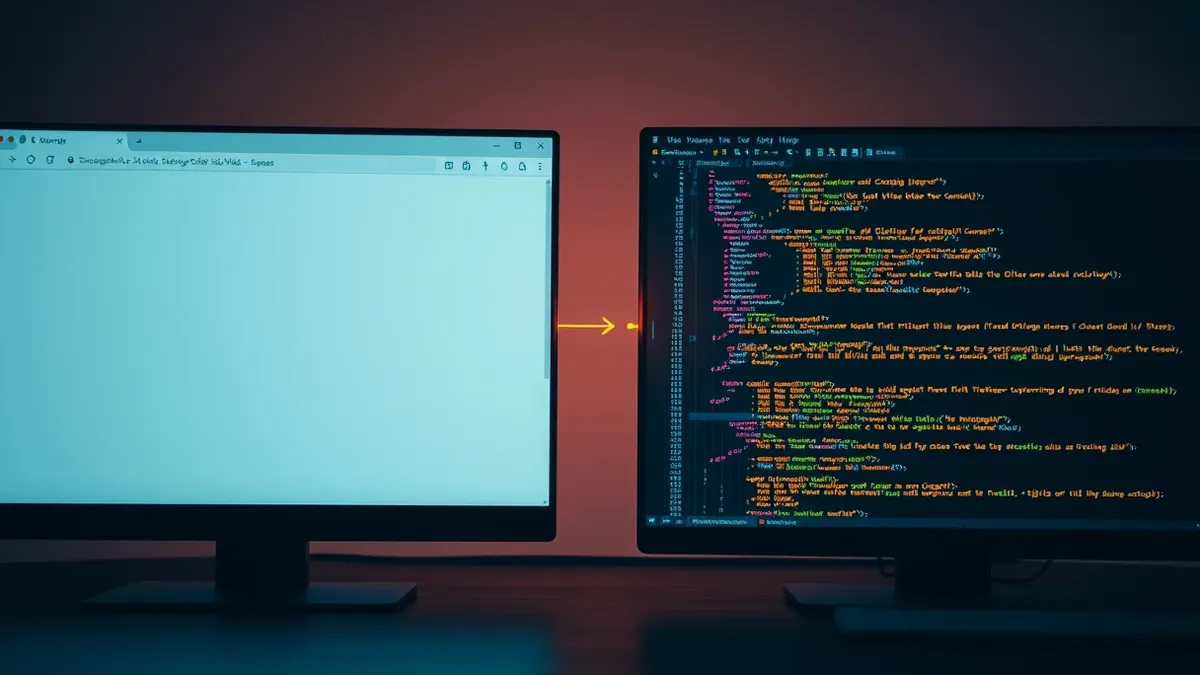
GitHub allows developers to transfer an active GitHub Copilot agent session from the web application into Visual Studio Code without losing any work context. This feature lets users start a coding task in the browser and finish it in their preferred desktop editor while keeping the conversation history and code changes intact. According to GitHub, this workflow eliminates the need to restart tasks or manually copy context between environments.
How it unfolded
- GitHub published documentation explaining how to continue a Copilot app session in VS Code.
- The post details opening a session directly in the editor to preserve context.
- Users can now review diffs and run local tests within the transferred session.
Who is affected
Developers using GitHub Copilot for coding tasks are the primary users of this feature. Those who prefer to review code changes, debug issues, and make final adjustments in Visual Studio Code benefit most. According to GitHub, the feature is designed for users who want the agent to handle repetitive work before handing control back for closer review. It supports workflows where manual editing and local testing are required after initial agent-generated changes.
What happens next
Users can open a session in VS Code to inspect the diff and review implementation details. The editor displays the session in the Copilot sidebar, keeping the task plan and conversation available. Developers can continue prompting Copilot for revisions or make manual edits directly in the worktree. According to GitHub, this allows for seamless transitions between agent-assisted coding and human-led refinement without reconstructing the session in a new window.
The background in plain language
Teams usually separate initial code generation from final review to ensure quality. When using AI agents, preserving the original task context is vital for understanding why specific changes were made. Check whether your workflow supports moving work between environments without losing history. This approach helps developers verify that AI suggestions align with repository conventions and handle edge cases correctly before merging code into the main project branch.
What to do and how to stay safe: GitHub
- Review the diff in VS Code to ensure changes follow repository conventions.
- Run the project’s normal validation workflow using the integrated terminal.
- Check for unrelated file modifications or missing error state handling.
- Verify behavior in a browser or local environment before pushing updates.
Step-by-step guide: Injection attacks examples: how prompt leaks break AI systems
General security guidance from the Circuit Observer newsroom. It is not confirmed advice from the organisations named in this story.
Frequently asked questions
Do I need to copy my conversation history to VS Code?
No, the session opens with the task, plan, and conversation intact.
Can I make manual edits after moving the session?
Yes, you can edit files directly in the session’s existing worktree.
Does the feature support local testing?
Yes, you can run tests and open localhost URLs in the editor.